DJI Phantom 3 — прошивка и инструкция по обновлению
Прошивка — это программное обеспечение, которое управляет всеми функциями и возможностями вашего квадрокоптера. Без прошивки полет коптера был бы невозможным, поскольку управляющий софт осуществляет взаимодействие всех узлов и систем устройства. Наличие последней, самой “свежей” версии прошивки необходимо для безопасности полета, поскольку каждое обновление содержит исправления выявленных багов и недостатков, которые могут привести к печальным последствиям. К слову, DJI выпускают новые версии прошивок не только для последних версий Phantom, но и для “старичков” серии Phantom 3 — версий Standard, Advanced и Professional.

Как обновить прошивку квадрокоптера? Загрузить прошивки и посмотреть полный список их версий можно на официальном сайте производителя. Необходимо выбрать модель своего коптера и зайти в раздел “Скачать” (“Downloads”). Кстати, с каждым обновлением DJI выпускают статью-релиз с полной информацией о изменениях в данной версии прошивки — таким образом вы узнаете, какие новые функции появятся у вашего коптера и что будет работать лучше после обновления.
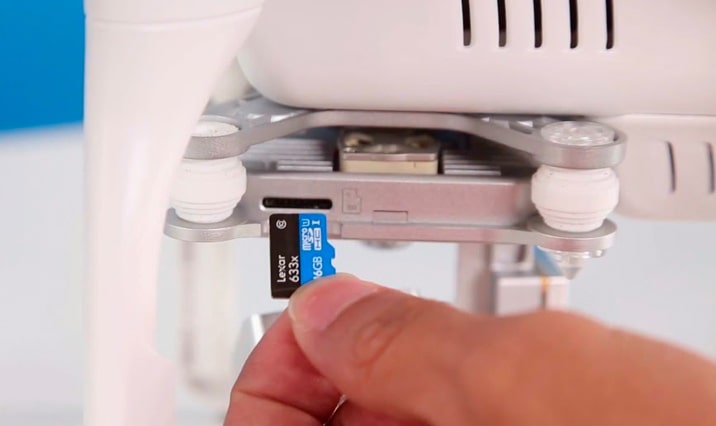
Перед прошивкой коптера строго необходимо полностью зарядить батарею самого летательного аппарата и пульта управления. Далее следует вытащить карту памяти из подвеса коптера и распаковать на нее дистрибутив скачанной с сайта DJI прошивки. Затем, вставляйте карту памяти обратно в коптер и снимайте с подвеса оба фиксатора. Включите коптер нажатием на кнопку на батарее — сперва коротким, затем длинным. После включения произойдет инициализация подвеса и затем начнется процесс обновления прошивки. Обновление сопровождается звуковыми сигналами и миганием светодиодов на корпусе зеленым и красным цветом. К слову, не забывайте о необходимости отключить пульт управления квадрокоптером перед запуском обновления прошивки.
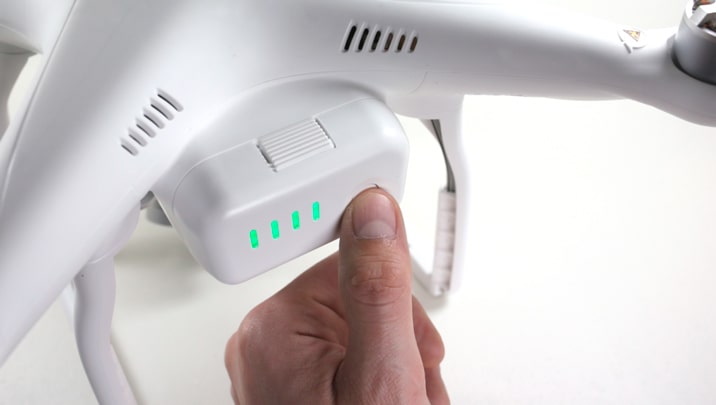
Обновление обычно занимает 10-30 минут, а об успешном окончании будет свидетельствовать зеленое свечение светодиодов. Если же во время обновления изменился звуковой сигнал, а диод загорелся красным — значит во время обновления произошла ошибка.
Если вы используете несколько батарей для квадрокоптера, не забудьте обновить прошивку каждой из них. Для этого после окончания обновления поменяйте батарею коптера и запустите процесс заново — софт самого Фантома обновляться снова не будет, но интеллектуальная батарея получит актуальную версию ПО. Процесс стоит повторить с каждой батареей, которая у вас есть.
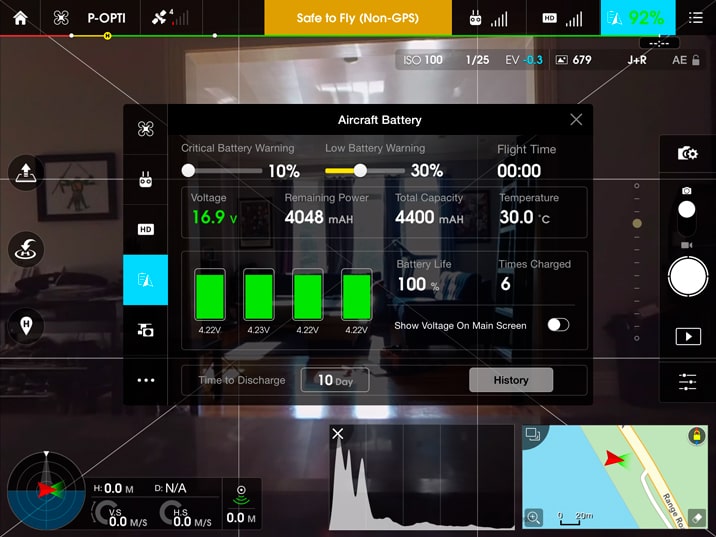
Пульт управления квадрокоптером имеет собственную прошивку, которая также нуждается в периодическом обновлении. Для этого необходимо подключить пульт к смартфону с установленным приложением DJI GO, а затем включить пульт. Далее, запускайте приложение и активируйте дрон. После установления связи аппарата с пультом зайдите в главное меню приложения, где в строке ‘Overall Status’ увидите рекомендацию по обновлению программного обеспечения, если таковое имеется (появится кнопка ‘Updates Required’). С началом процесса обновления вы увидите статус установки нового ПО в процентах. По окончании установки вам будет предложено перезапустить пульт управления вашим квадрокоптером. На этом обновление ПО будет закончено.
DJI Phantom 3 Firmware Update – Complete Guide
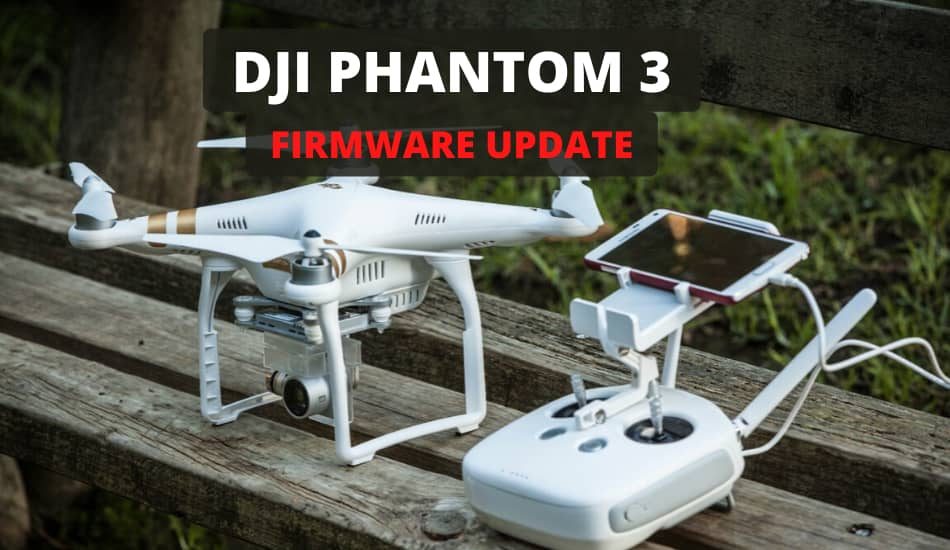
Firmware is an important update in several points of view. Not all drone owners, know how to update their Phantom 3. Firstly, it eliminates the errors of older versions of software, and secondly, it allows you to access the new features of applications for your drone. When you are upgrading Phantom 3 software, you get the access to the new features. Except for the firmware upgrade on your Phantom 3 itself, you have the option to upgrade the battery, controller and mobile application. Here we will explain to you why, when and how you need to update the firmware on your DJI Phantom 3 for Pro, Advanced, 4K and Standard model. So let’s begin.
| Updating The Firmware on a DJI Phantom 3 |
|---|
| 1. Remove the propellers before updating the firmware |
| 2. Insert the Micro-SD card into the Micro-SD slot on the Phantom’s camera |
| 3. Power on the aircraft. The update will begin automatically |
| 4. It will take a maximum of 25 minutes to complete the update |
| 5. The gimbal will emit a beeping sound (D-D-D-D) when it is ready to update. Wait until the sound changes. |
| 6. The gimbal will emit a fast beeping sound (DDDD-DDDD) when the update is in progress. Wait patiently, until the sound changes. |
| 7. Disregard the LED indicator or any sounds from other moduels as they do not reflect the status or progress of the firmware update |
| 8. The gimbal will emit a slow beeping sound (D—DD) when the update is complete. |
| 9. When the update is complete, you must restart the Phantom 3 manually. |
This step is for using the Micro-SD card, below you will find more options how you can update the firmware for your Phantom 3. P.S. You can find extra Phantom 3 gadgets here on Amazon.
Table of Contents
Why You Need To Upgrade The Latest Firmware Version?
Firmware is software that controls the operation of the hardware of the device (in this case the Phantom 3). Without firmware, most of the electronic devices we use daily can’t work. Firmware performs a limited number of functions, as well as a full-fledged, multi-functional operating system. Smartphones, tablets, iWatches use the operating system, and its installation can be called the firmware process. It is pre-modified and compiled into an image, and recorded in the internal memory of the device. Drones use a lot of complex firmware system, as it is necessary to maintain and coordinate drones in the air.
What are the benefits of upgrading the firmware to DJI Phantom 3?
- New update of firmware can unlock new features that are released by DJI.
- New update can fix bugs that have been identified
- New update can add the support for latest apps
Therefore, the main purpose of updating the firmware is to correct, adjust, in rare cases, the disclosure of previously hidden potential to your Phantom 3. Most manufacturers release updates for the firmware of their devices on a regular basis, while providing the necessary software tools for recording new firmware. With each new version we advise you to make an update that has been released by the DJI. With regular maintenance and firmware updating, you will avoid all possible errors and keep your drone to the best of its abilities.
Where You Can Find The Latest Phantom 3 Firmware Updates?
The latest firmware updates for Phantom 3 can always be found on DJI official website. On their page you will find all the latest versions that have also been checked and updated. Here we will provide you with the links for all Phantom 3 models. By the way, with each update DJI release an article release with full information about changes in this version of the firmware – this way you will know what new features will appear on your drone and what will work better after the update.
- Phantom 3 Pro (Download link)
- Phantom 3 Advanced (Download link)
- Phantom 3 Standard (Download link)
- Phantom 3 4K (Download link)
Each firmware file has its own “code” name and number by which you can identify the latest version of it, which usually has the largest number in the name. Just look at the download page, download the new firmware, and for safe installation it is better to be guided by the provided documentation. Example: “Firmware vX.Y.ZZ”. So make sure you always keep up with the date of the latest firmware version that DJI release through DJI Go app.
How to See The Current Firmware Version on Your Phantom 3?
If you want to know which firmware version do you have on your Phantom 3, all you have to do is enter the DJI Go app and see. Also DJI Go app can automatically notify the user when he needs to upgrade the new version.
- Turn on the DJI Phantom 3 and the Remote Controller
- You need to connect the phone with your Phantom 3
- Then you need to open the DJI Go app and enter the camera view.
- Tap the “Settings” that is located on the right corner of the screen.
- As a final step, scroll down and find the option “About”. Here you will see the current firmware version of your Phantom 3 and your Remote Controller.
What You Need To Do Before Updating the Firmware?
Before you start to update your Phantom 3 firmware, you need to have 7 things prepared:
- DJI Phantom 3 (fully charged)
- Remote Controller (fully charged)
- Computer (with strong Internet connection)
- Micro-SD card with at least 100 MB of free space (+ reader to attach it to the computer)
- USB Stick
- Time – the whole process will take at least 1 hour
Updating The Firmware on a DJI Phantom 3
So how to update Phantom 3 firmware? The steps for Firmware update is almost the same for all 4 types of Phantom 3 models (Pro, Advanced, Standard and 4K). The upgrade process will takes about 1 hour to complete. It will take time, and therefore, before starting the upgrade, you must check the status of the battery of the drone. It is advisable that you have at least 50% battery charged. Since we need to download and update program files, make sure that there is enough space on the memory card – at least 100 MB. So, here is the step-by-step update process of how to update firmware on your Phantom 3:
Using the Micro-SD card (Option 1)
- Remove the propellers before updating the firmware
- Insert the Micro-SD card into the Micro-SD slot on the Phantom’s camera
- Power on the aircraft. The update will begin automatically
- It will take a maximum of 25 minutes to complete the update
- The gimbal will emit a beeping sound (D-D-D-D) when it is ready to update. Wait until the sound changes.
- The gimbal will emit a fast beeping sound (DDDD-DDDD) when the update is in progress. Wait patiently, until the sound changes.
- Disregard the LED indicator or any sounds from other moduels as they do not reflect the status or progress of the firmware update
- The gimbal will emit a slow beeping sound (D—DD) when the update is complete.
- When the update is complete, you must restart the Phantom 3 manually.
Note: If the gimbal emits a long beeping sound (D—-), this means the update has failed. Restart the aircraft and the automatic firmware repair process will begin.
The process is complete when the gimbal stops emitting the long beeping sound (D—). You can also remove the Micro-SD card to check the final status of the update. Open the „.txt“ file that is automatically generated after the update. „result: success“ means the update was successful.
Legend: LED indication on the gimbal:
- Flashing green then red LED – The process of firmware is still updating
- Green LED light – The firmware process is complete
- Red LED light – The firmware process was unsuccessful
Using the DJI Go App (Option 2)
- First thing you need to do is to turn On the Phantom 3 and the Remote Controller
- Next, you need to connect the Phantom 3 to the internet
- Open the DJI Go app with your phone or tablet
- After you entered the app, tap on the “New firmware update is available”.
- Next step is to connect your phone or tablet to the internet
- Inside the DJI Go app tap the “Download Now” and wait till the progress bar show you when the file is downloaded.
- After you have downloaded the file, you’ll need to turn on the Wi-Fi network and change the connection to your controllers Wi-Fi network.
- Re-open the DJI Go app, find “Start Upgrade” and click on it.
- The installation will begin, you will see the progress bar. Wait until the process is finished.
- After the installation is complete, click “Complete” button in the DJI Go app and restart your Phantom 3. The new firmware update is completed.
How To Update the Firmware on the Phantom 3 Controller?
When you have Phantom 3 Pro or Advanced version, you need to regularly update the firmware version to your remote controller. Before you start the process of updating the firmware to your Phantom 3 Remote Controller you need to follow these pre-steps:
- You need to have the latest DJI Go app version on your phone or tablet.
- Your Remote Controller need to be fully charged
- Your Phantom 3 must be turned off.
- Your mobile phone or tablet need to have stable internet connection
- Your mobile phone or tablet also need to be fully charged
- You need to have at least 100 MB of free space on your mobile or tablet before you download the latest version of firmware package.
Using the Micro-SD card (Option 1)
- Ensure that the Phantom 3 Remote Controller’s battery has at least 50% remaining power. During the update don’t power off your remote controller.
- The remote controller’s firmware is included in the update package downloaded from the official DJI website (DJI.com).
- Insert the Micro-SD card into a card reader and plug the reader into the remote controller’s USB port.
- Power on the remote controller and wait 20 sec until the update begins. The remote controller will begin updating automatically.
- A beeping sound and the remote controller’s status LED will indicate the progress and status of the update.
- The update is in progress when the Status LED is blue and the remote controller emits a fast beeping sound (DDDD-DDDD).
- The update is complete when the Status LED turns green and the remote controller emits a slow beeping sound (D—DD).
- Restart the remote controller.
- The process is complete if no sound is heard.
Note: If the status LED is red and no sound is heard, the update has failed. You need to restart the controller and firmware process will begin. Wait for 5 minutes and then restart the remote controller again.
You can remove the Micro-SD card to check the final status of the update. Open the „.txt“ file that is automatically generated after the update. „result: success“ means the update was successful.
Using The DJI Go App (Option 2)
- You need to connect your Remote Controller to your mobile or tablet by USB cable.
- Next step is to turn on the Remote Controller.
- Enter the DJI Go app on your mobile or tablet where you will see camera interface.
- You need to tap the “Flight Status” bar at the top of the screen in the app.
- Tap the “Overall Status” where you will see a message “Upgrade Required”.
- Click on “download Firmware” button in the app.
- After the firmware download is complete, click on the “Start to upgrade” button that will be shown at the bottom of the window.
- You will see that the Remote Controller will give you a warning sound that the update process of firmware has started through the LED indication that will flash blue.
- The progress bar will appear in the DJI Go app and you will see in real-time the update process.
- Once you see on your remote controller a solid green light on LED, the firmware process is complete.
Battery Firmware Update
If you use several batteries for a quadcopter, do not forget to update the firmware of each of them. To do this, after the update is completed, change the Phantom 3 battery and start the process again – the Phantom software itself will not be updated again, but the smart battery will receive the current software version. The process is worth repeating with each battery that you have.
Useful Tips For Updating Phantom 3 Firmware
- Make sure you only have one firmware package on your Micro-SD card. Verify that this is the case before starting the procedure.
- You have to make sure that the file system of your drone and the controller during the upgrade are supporting the media files that have ExFAT and FAT32 file systems.
- Your internet connection need to be stable on your phone so you can avoid problems during the download process.
- Important thing before you start the firmware update is to enable “Airplane mode” on your phone so you can be sure that you will not be interfered with incoming calls due the update procedures.
- Never run updates if the drone is still in flight. This operation should only be done on the ground in compliance with all safety requirements.
- You need to synchronize the device after the update of the controller.
If you want to flash the controller, you need to insert a Micro-SD drive with firmware into your Phantom 3, connect the remote to the drone with a USB cable, and turn on the power of the remote and the drone – the firmware will start automatically.
Conclusion
Any drone made by DJI regularly needs updating. In this article, we have described in detail the process of how the firmware update should be done and what pre-steps are important. Firmware is software that manages all the functions and capabilities of the drone. Without firmware, the flight of the drone would be impossible, since the control software interacts with all the nodes and systems of the device. The presence of the latest, most “fresh” version of the firmware is necessary for flight safety, since each update contains corrections of identified bugs and deficiencies, which can lead to sad consequences. I hope that this article helped you. If you have any questions, please leave a comment below.
I'm the CEO and founder of DTH. I have been passionate about Drones since I was a boy. I will bring you experience, expertise and knowledge in this new industry which I have gained over the last couple of years.
Download Center

One of the best drones around thanks to a host of features and 2.7K video recording.
DJI Store
The DJI Store app lets you effortlessly shop for DJI products and enjoy exclusive discounts.
Requires iOS 12.0 or above
Requires iOS 12.0 or above
iPhone 14 Pro Max、iPhone 14 Pro、iPhone 14、iPhone 13 Pro Max、iPhone 13 Pro、iPhone 13、iPhone 12 Pro Max、iPhone 12 Pro、iPhone 12、iPhone 11 Pro max、iPhone 11 Pro、iPhone 11、iPhone SE 2020、iPhone XS max、iPhone XS、iPhone XR、iPhone X、iPhone 8 Plus、iPhone 8.
Requires Android 7.0 or above
Requires Android 7.0 or above
Samsung Galaxy S21,Samsung Galaxy S20,Samsung Galaxy S10+,Samsung Galaxy S10,Samsung Galaxy Note20,Samsung Galaxy Note10+ ,Samsung Galaxy Note9,HUAWEI Mate40 Pro,HUAWEI Mate30 Pro,HUAWEI P40 Pro,HUAWEI P30 Pro,HUAWEI P30,Honor 50 Pro,Mi 11,Mi 10,Mi MIX 4,Redmi Note 10,OPPO Find X3,OPPO Reno 4,vivo NEX 3,OnePlus 9 Pro,OnePlus 9,Pixel 6,Pixel 4,Pixel 3 XL
*Support for additional devices available as testing and development continues.
How To Update Phantom 3 Firmware To Greatly Improve Your Quadcopter
Keeping your DJI Phantom 3 firmware updated is extremely important. Firmware updates contain fixes for bugs, add new features and make improvements. With the Phantom 3, you update both the quadcopter and remote controller with the same firmware file.
Since the release of the new Phantom 3 Professional and Advanced models in April, there are been 4 firmware releases. Each of these firmware releases fixed bugs, issues and added new features.
In this post, all the instructions, best practices and tips on how to successfully update the firmware on your Phantoms 3 along with the Remote Controller.
Please note that the Phantom 4 firmware update uses an easier process using either the DJI Go or DJI Assistant 2 app.
How To Update Phantom 3 Firmware Instructions
Here is the process to upgrade the firmware on the Phantom 3, the remote controller and also the battery.
Updating the Phantom 3 Quadcopter Firmware
- Download the latest Phantom 3 firmware update package from the official DJI website onto your computer or laptop. Double check and insure that you download the correct firmware for your Phantom 3.
- Insert your SD card into your computer. Extract the firmware package into the root directory of the SD card. That’s one of the main reasons to have a clean SD card with nothing else on it. Remove the SD card from your computer.
- Ensure that both the aircraft and remote controller is powered off. Insert the SD card into the SD card slot on the Phantom 3 camera.
- Next power on the aircraft. The firmware upgrade will begin automatically after your quadcopter is powered on.
- It will take roughly 25 minutes to complete the firmware update. The camera status light will blink green and red to indicate the upgrade is happening. It will stop blinking when the update is complete and successful.
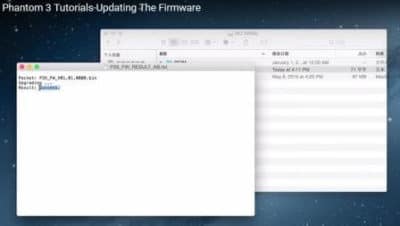
- Check the upgrade status to insure the firmware update was successful. Remove the SD card from the Phantom 3. Insert it back into your computer and open the “.txt” file that is automatically generated after the update. If the update is successful you will see “result: success” in the document. In the Pilot App you will also see that the firmware is now at the latest version.
- If at the end of the update and the camera indicator shows solid red, then the update more than likely has failed. Check the .txt files on the SD card. It will give the “result: failed”. Try upgrading the firmware again.
Phantom 3 Remote Controller Firmware Update
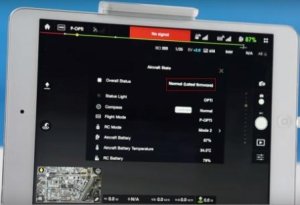
Before updating the Phantom 3 Remote Controller, check and ensure that the DJI GO app has been updated to the latest version. As of July 2016 the DJI GO version is v2.8.2.
You will know if there is a GO app firmware update available as the System Status bar in Camera View will flash several times. Follow through on these steps to update the firmware on the DJI GO App.
Take all the necessary best practices as described above. So check battery, SD card, Internet connection etc before starting.
NOTE: It is a great idea to remove the “Result: Success / Failed” text file from the SD card after the quadcopter update and before starting the Remote Controller update.
1. Downloaded and install the latest DJI GO App from either Google Play or the Apple App store.
2. In the DJI GO App, go to “Camera View, System Status bar, Overall Status”. Tap “Download the firmware update” package to download and update the firmware. You can follow the update progress from the progress bar in the DJI GO App. The status LED on the remote controller will blink blue during update and when completed and successful, it will blink green.
Update Phantom 3 Remote Controller Instructions
1. Download the latest Phantom 3 firmware. The quadcopter and remote controller use the same firmware.
2. Extract the downloaded firmware package onto the root directory of a clean SD card or USB flash drive.
3. Turn off the remote controller. Insert the SD card onto the remote controller USB port.
4. Switch back on the remote controller. Next, wait approximately 60 seconds until the upgrade begins. Do not power off the remote controller during the update.
5. The Phantom 3 remote controller firmware update will take roughly 10 minutes to complete. The Status LED on the remote controller will show a solid blue to indicate the update is in progress. The transmitter will have fast beeps during the process. The Status LED on remote controller shows solid green and the beeping sound will stop when the upgrade is completed with success.
6. If you do not have a SD card reader, you may insert the SD card into the gimbal and connect the gimbal with remote controller by the cable to upgrade the remote controller.
7. NOTE: You will only be able to update the remote controller firmware through the DJI GO app from this point onward.
Flight Battery Firmware Update
The Phantom 3 battery is upgraded during the process of upgrading the quadcopter. The battery upgrade actually starts automatically after power cycling the quadcopter.
Re-Link Remote and Phantom 3
The remote controller may become unlinked from the aircraft after firmware update. Re-link the remote controller and aircraft. The instructions for linking the remote controller to the Phantom 3 can be found on page 28 of the user manual, which comes with your Phantom. You can also find the user manual from the Phantom 3 download web page.
Now to finish off, here is a terrific video from Drone Camps RC which takes you step by step through the Phantom 3 firmware update with some great tips along the way.
About DJI Phantom 3 Firmware Update
With every firmware upgrade you will also find release notes. These are always quite interesting to read as the release notes tell you exactly the bugs, issues and improvements will the firmware will fix. Here is a few of the bugs and enhancements which the Phantom 3 firmware updates have contained up to the present.
- Updated the Flight Restriction Zone database.
- Fixed the Intelligent Flight Battery to prevent automatic restarting in cold environments.
- Added HD Video Conversion option in the video editor when cutting footage to video.
- Automatic photo syncing of the compressed files to your mobile device.
- Fixed issue of the camera failing to save photos when shooting in burst mode.
- Anti-distortion feature added for images and non 4k videos.
- Fixed issue of some aircraft unable to determine their altitudes.
- Fixed issue of the DJI Pilot app unable to obtain and display battery error history.
- Fixed issue of the compass calibration progress not being displayed properly.
- Fixed the issue of failure to update the firmware if the remote controller is turned off.
- Re-link the remote controller to the aircraft if the connection is lost after the firmware update.
Firmware Update Major Benefits
A firmware update can add new features to your drone. For example on 7th September 2015, DJI had a major firmware update for their Phantom 3 and Inspire 1 drones. This updated added the following excellent features. Having the latest new features and improvements is a major benefit to updating the firmware on your drone.
- Waypoints: Record a flight path, then tell your Phantom 3 or Inspire 1 to fly along the same path repeatedly while you control the camera and orientation. Save your favorite missions, customize speed, and more.
- Point of Interest: Tell your Phantom 3 or Inspire 1 to automatically revolve around a designated object, person, or place in a perfect circle. It’s automatic and you can customize to get the very best shots.
- Follow Me: (Phantom 3 series only). Tell your Phantom 3 to follow you, and it automatically flies and keeps you in the camera’s view you wherever you go.
- Home Lock: Customize your flight controls to be relative to you at all times. Flick a switch, and forward/backward and left/right flight will be set in relation to the Home Point.
- Course Lock: Easily fly along a set path by putting your platform into Course Lock, which sets all flight controls to directions relative to its current heading.
Phantom 3 Firmware Beeping Sounds
With the Phantom 3 firmware update, you have to pay attention to the beeps the quadcopter gimbal and remote controller are emitting during the upgrade. Here is some information on these beeping sounds. I have videos below which will also take you step by step through the update process.
- Ready to update sound from the gimbal similar to D-D-D-D D-D-D-D. You don’t have to do anything at this point.
- Fast beeping noise indicates the firmware is updating. This can take up to 25 minutes. Sound is similar to DDDD DDDD.
- Slow beeping sound when firmware update is complete. Similar sound to D—DD D–DD. At this point you would restart the Phantom 3 manually.
- NOTE: A long beeping sound means the update has failed.
Fail To Update Firmware Signs
Here are a few signals which show you if the Phantom 3 firmware upgrade has failed.
- Long beeping sound after the firmware has been updating for some time.
- Camera indicator light is solid red after the update.
- After the update, the SD Card will contain a *.txt file where the result will show “fail”.
If the Phantom 3 firmware update fails try the following. Download the package again onto a clean memory card. Make sure that you downloaded the correct package for your Phantom 3 and follow the best practices below.
Firmware Update Best Practices
Take these steps to insure a smooth firmware update of your quadcopter. These are great best practice for any firmware update whether it is a drone, cellphone or a computer. If a firmware update goes wrong, there are a number of outcomes. Having to start the process all over again is one outcome.
However, if the firmware update had a fix for a mother board or another component and the firmware file was corrupt, you could damage the component. With these steps you will avoid a sloppy or unsuccessful firmware update.
Take Your Time
Never rush a firmware update. For the Phantom 3, give at least 1.5 hours to be on the safe side. Be sure to also update the remote controller firmware to the latest version. You complete the upgrade as follows:
- Phantom 3 quadcopter.
- DJI GO App.
- Remote Controller.
Check Your Parts
While it is not a requirement as part of the update, you might as well give you Phantom 3 a nice close look over. Check all parts to make sure nothing is bent, cracked or dirty. Give your drone a nice gently clean with a soft cloth if need be.
Note: If you need any components or accessories for your quadcopter, then check out our DJI Phantom 3 parts, upgrades and accessories page.
Safety And The Right Place
Have plenty of space and a quiet area so you can concentrate on the upgrade. You definitely don’t want the family pet to knock over the Phantom 3 or remote controller during the update.
Do not perform firmware update while the quadcopter is still flying in the air. Only carry out firmware update when the quadcopter is landed. Also, it is good practice to remove the propellers before starting the firmware update.
Charge All Batteries
Have at least 50% in your batteries before starting the update. Best practice is to have fully charged batteries in both the quadcopter and remote controller.
SD Card
This should be formatted for FAT32. The exFAT file systems are also supported for aircraft and remote controller firmware updates. From the shop, SD cards should have the correct file system.
Clean SD card
It is very important to have a clean SD card to use to download and install the firmware update. SD cards hold huge amounts of data. Now, your Phantom 3 will know exactly what type of file to pull off your card for the update.
However, if you had similar file names on your SD card or a virus on your card and your Phantom 3 pulls these files off, then the Phantom 3 firmware is going to fail at the very least. But you could end up replacing hardware in some cases.
DJI recommend an SD card with 100 MB free. Definitely, delete or move any older Phantom 3 firmware updates and log files off the memory card. Reformat the SD card with FAT32 file system if you need to.
Downloading The Firmware Package
Make sure you have a good internet connection when downloading the firmware update package. If you loose internet connection while downloading the firmware package, it would be better to delete the part of the package which downloaded and start again.
The firmware file is too important to go wrong. Turn on Airplane Mode on your mobile device before updating the firmware, as any incoming calls may disrupt the update process.
Update DJI GO App
Update this application to V.1.2.0 on your mobile or tablet device before updating the firmware on the remote controller.